Call history
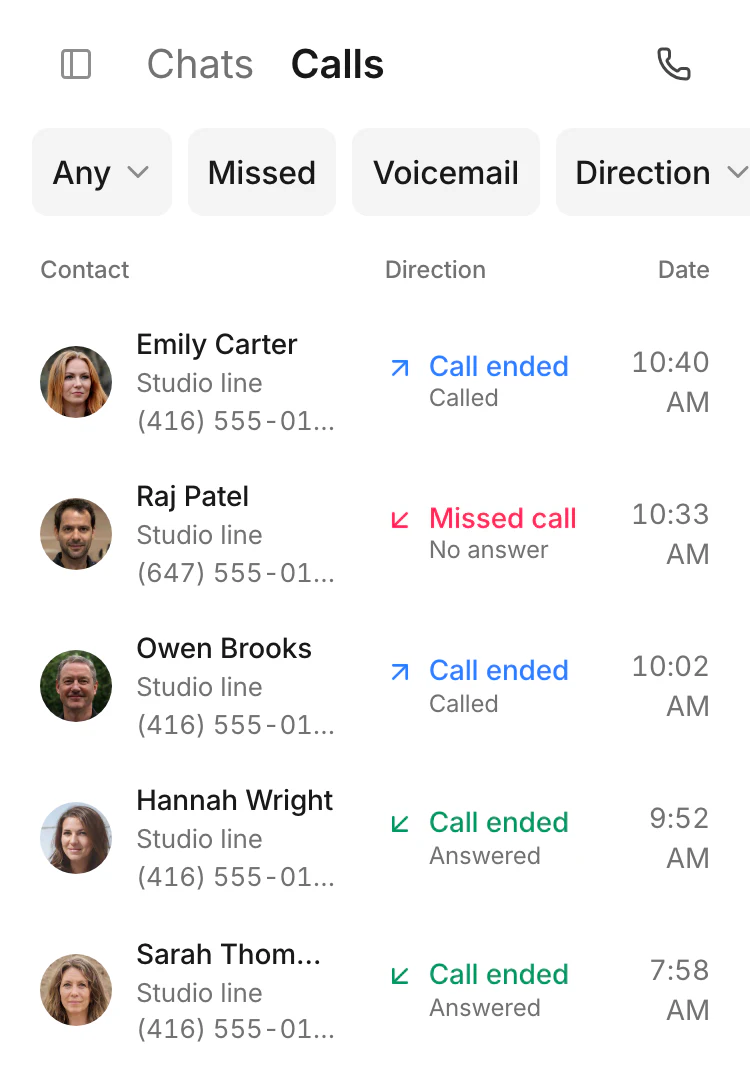
The call history shows the customer, direction and date.
The Bonmoniq workspace
Answer a customer, check a detail with a colleague and give the follow-up an owner, in one workspace.
Choose Starter, Team or Business for your workspace.

The customer’s request and the team’s replies stay in one thread, with the contact beside it.
A customer can write or call. The team can find the exchange, see previous replies and continue with the context already there.
The call history shows the customer, direction and date.
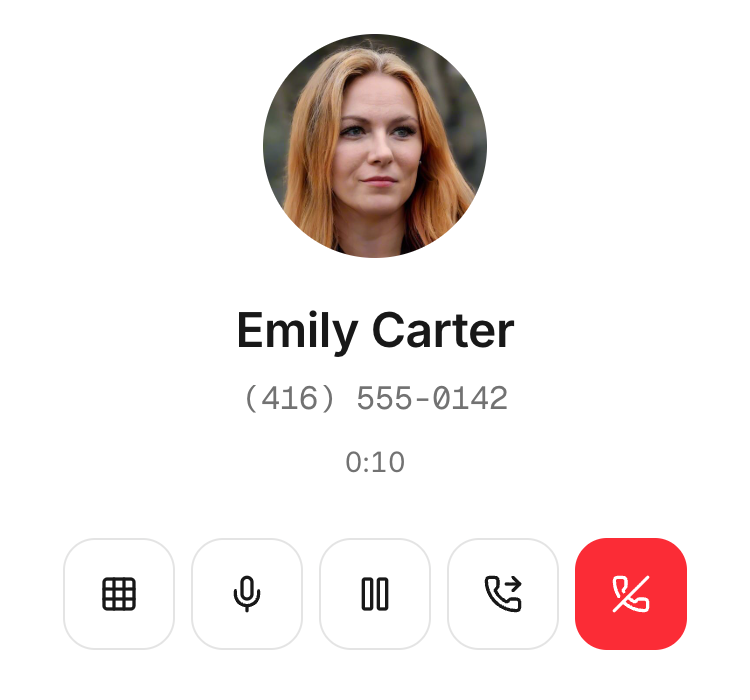
The customer’s name, elapsed time and mute, hold and transfer controls stay visible.
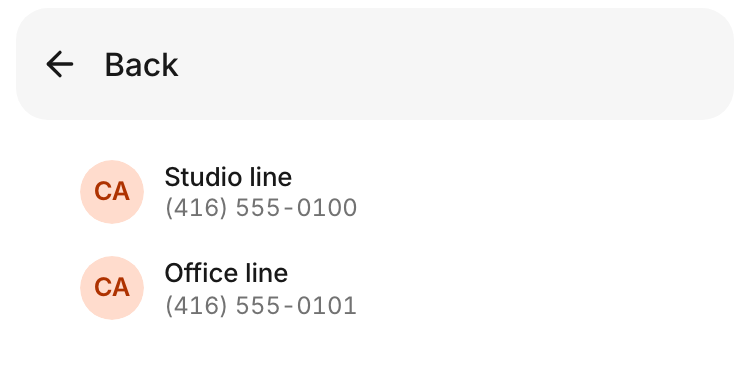
The line picker shows which business number the call will come from.
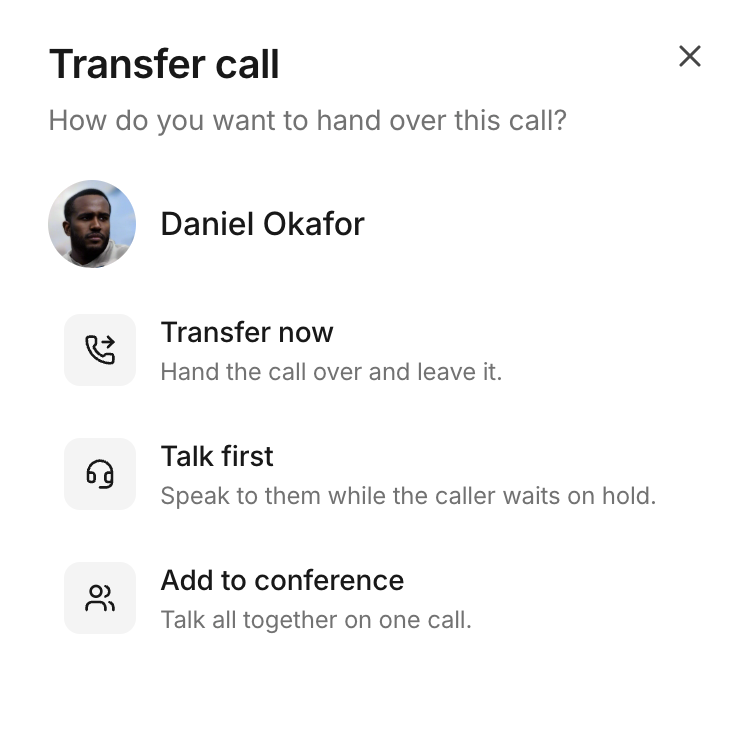
Transfer now, or talk to the colleague first while the caller waits on hold.
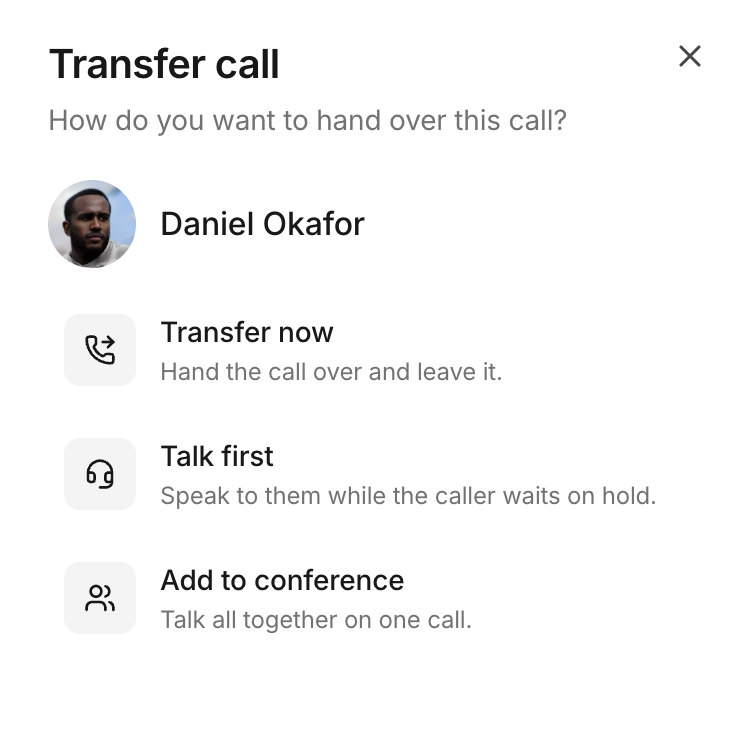
The transfer menu offers Add to conference to bring the selected colleague into the call.
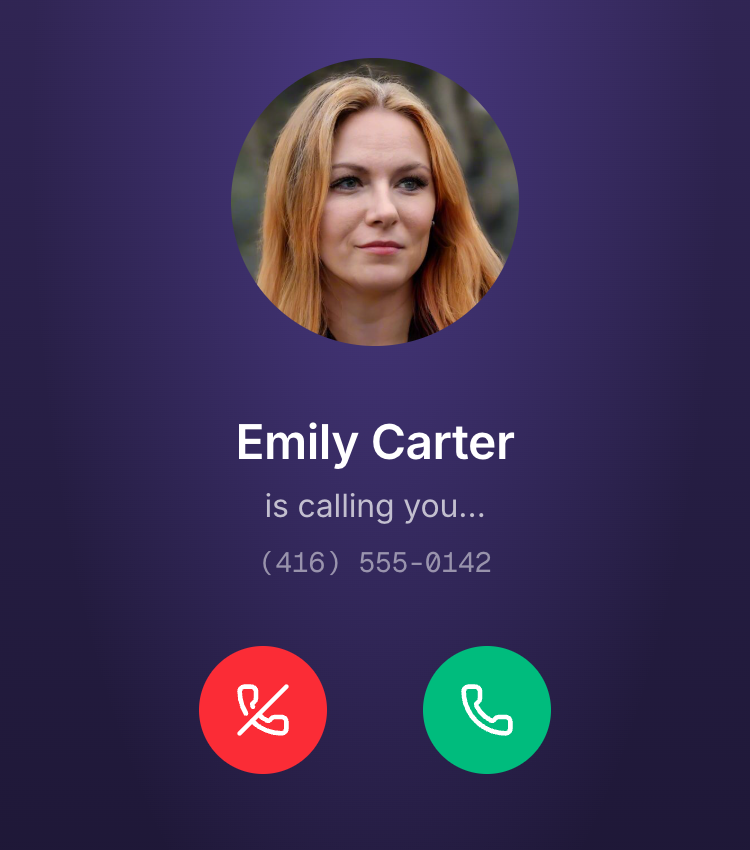
The incoming-call screen identifies the customer and offers answer or decline controls.
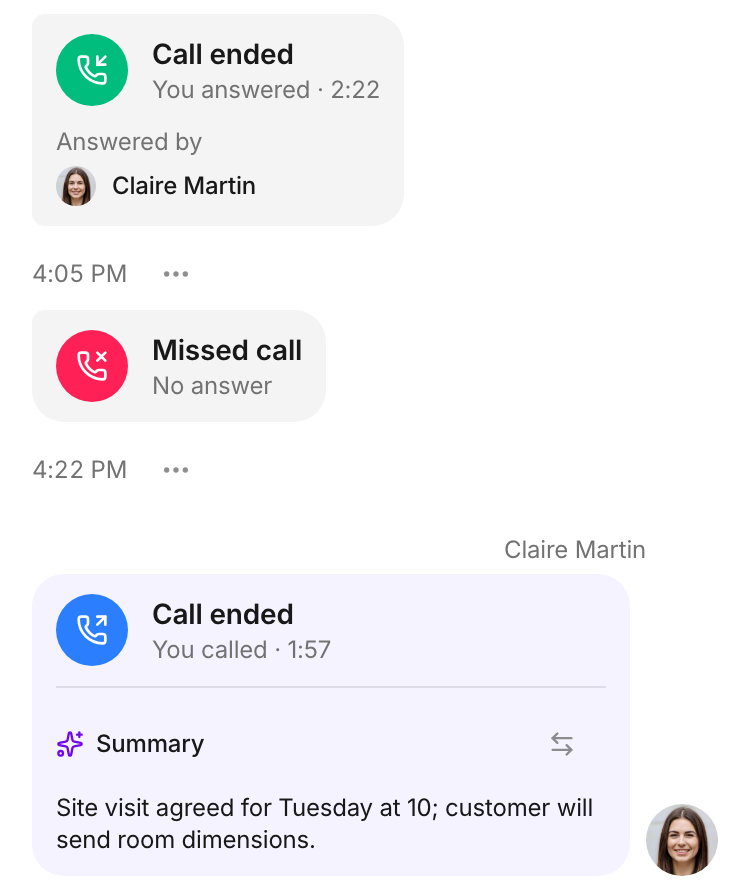
The conversation keeps answered, missed and outgoing calls together with a summary.
Check a detail in an internal note, give the follow-up an owner and date, and see scheduled work on the calendar. The team can pick up without asking for the story again.
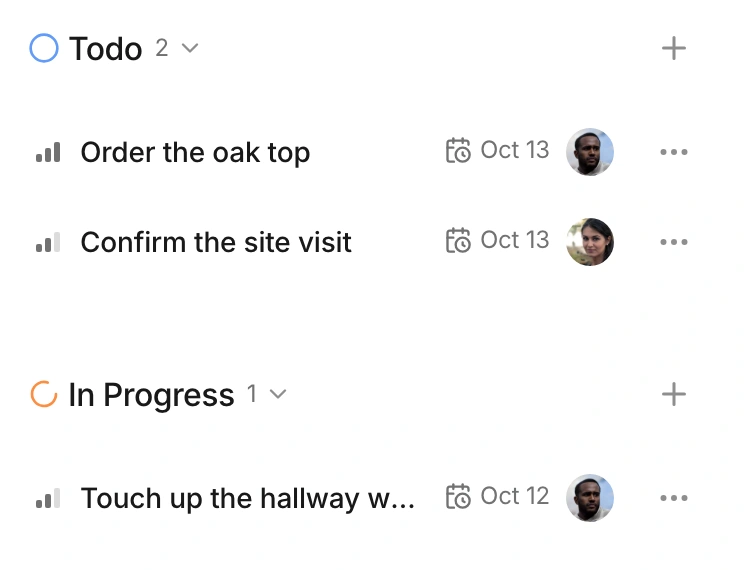
Move through status columns to see the work and the teammate responsible for each task.
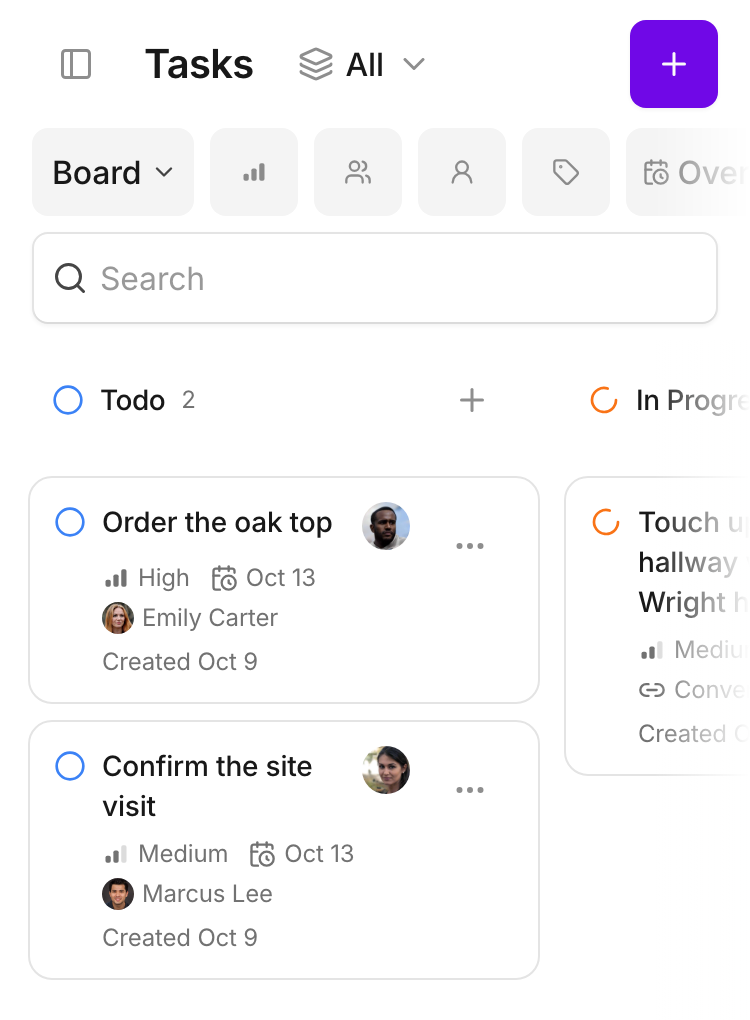
The list keeps task status, due date and owner in the same row.
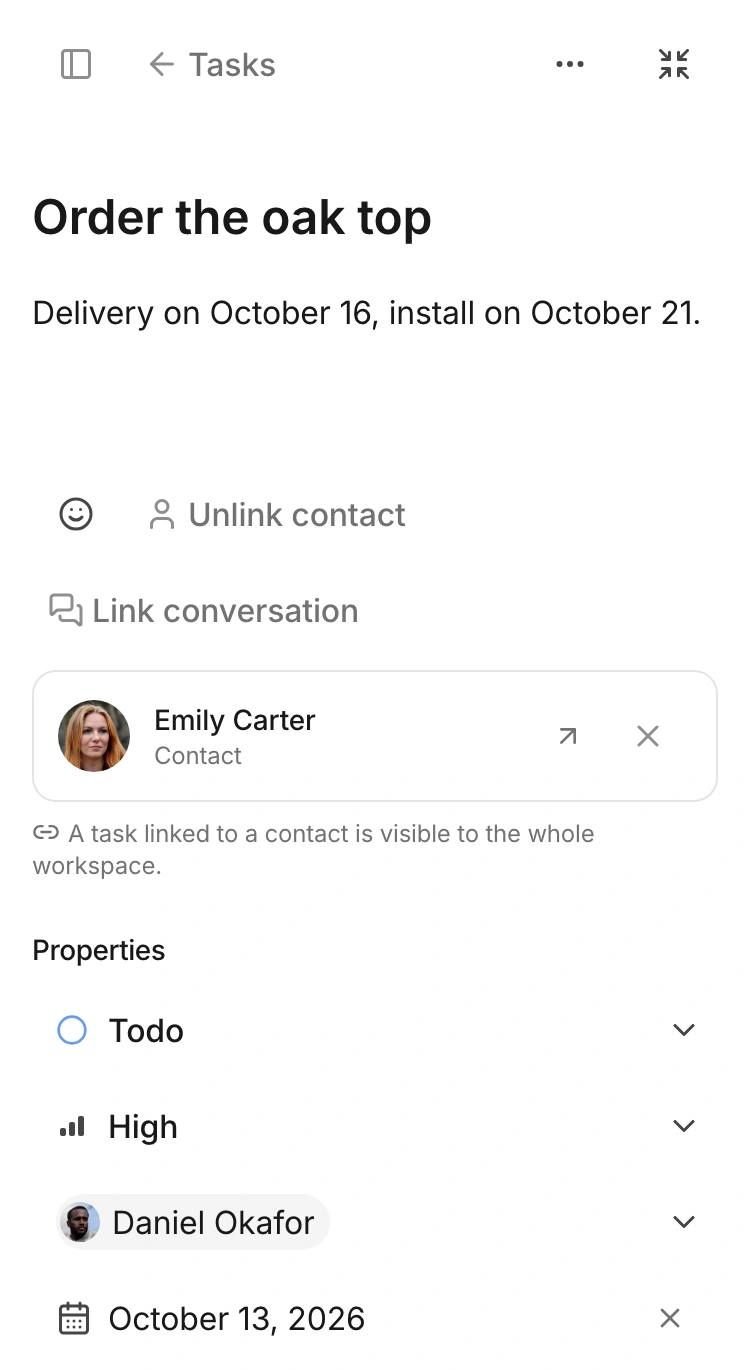
The contact, status, priority, owner and date are visible together.
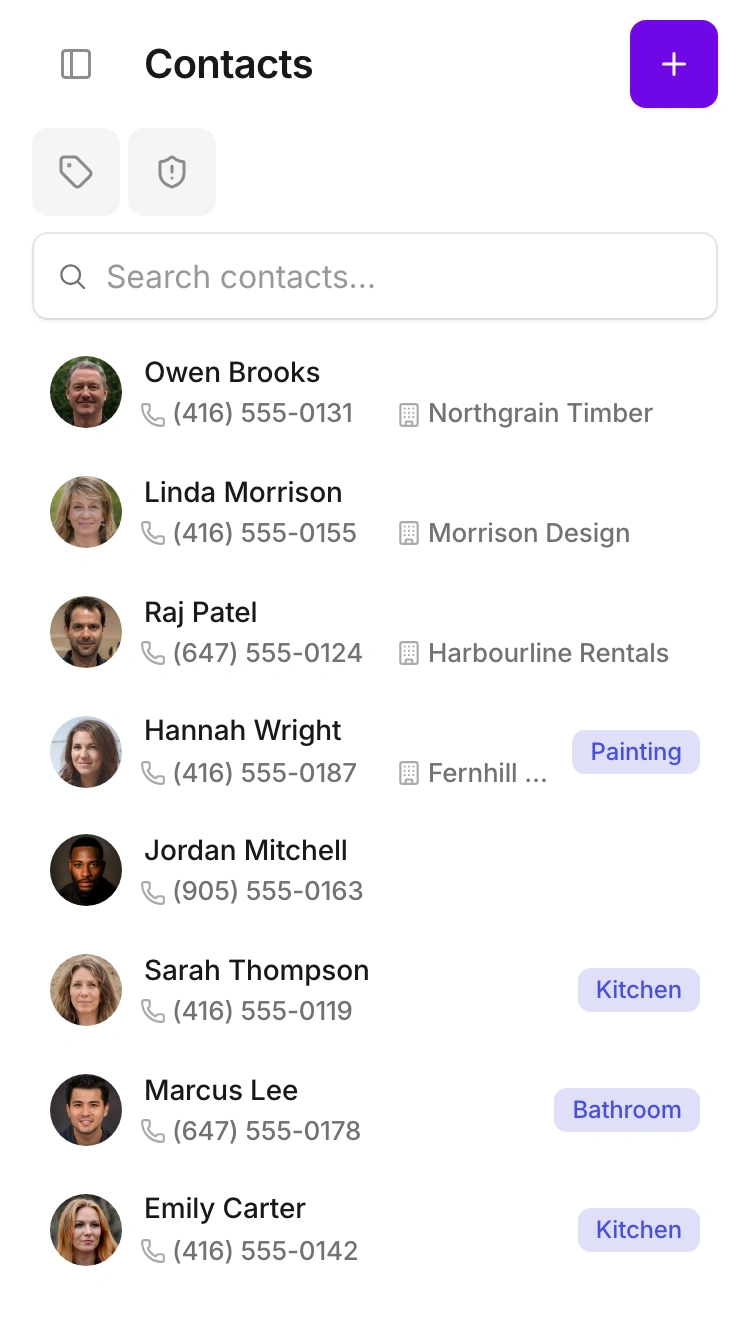
Find the customer’s details, search for a previous exchange or open a shared procedure. Give the team a place to find the answer before replying.
Find the customer in the workspace's contact list.
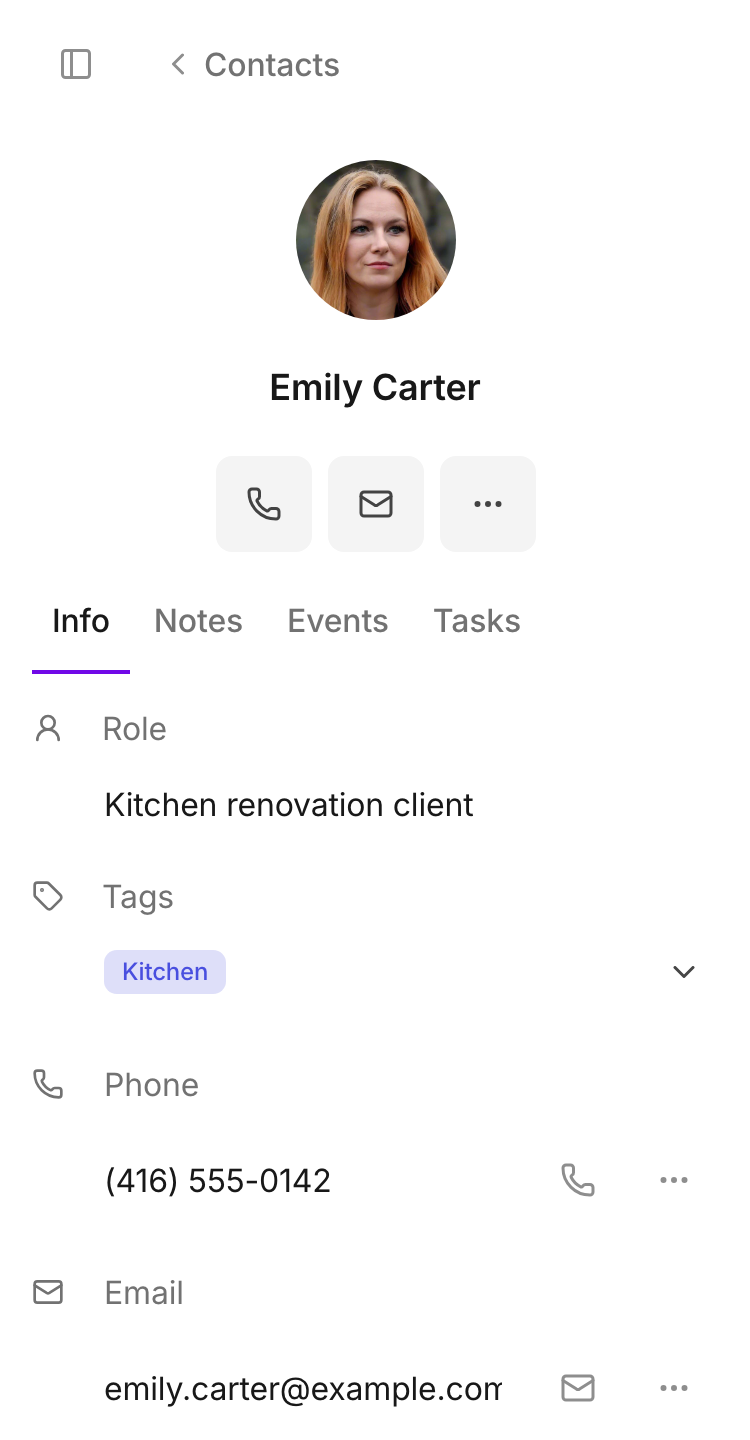
Open the contact to see the details the team keeps together.
A queue gives customer work a shared destination. Set the team, define which conversations come here and keep a default queue for conversations that match no rule.
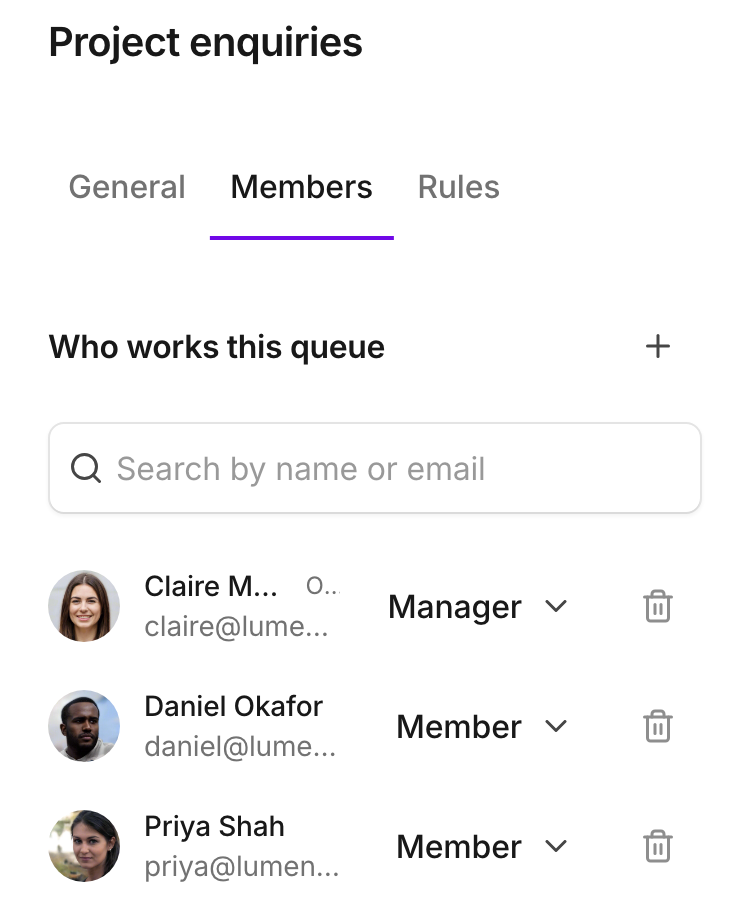
The queue’s member list shows the people who work it and their roles.
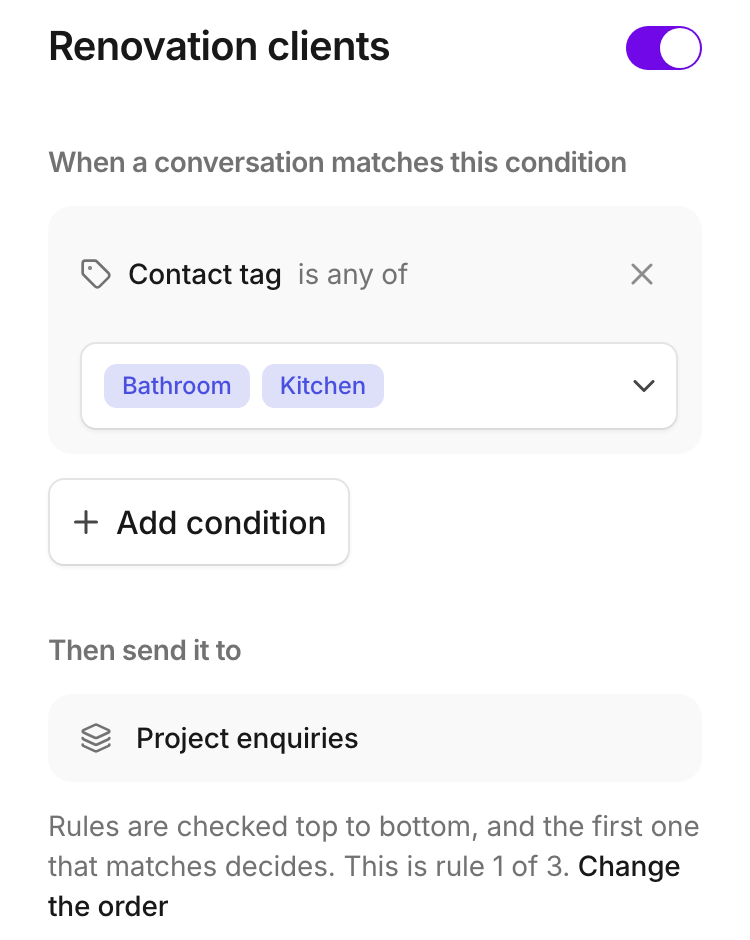
Conversation conditions and a queue destination make the routing rule explicit.
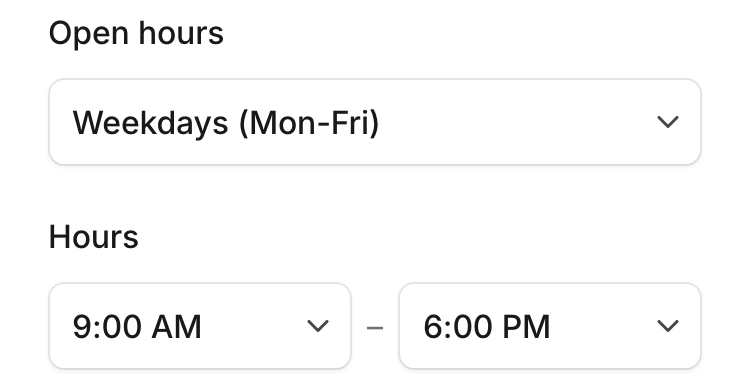
Set opening hours and choose where calls go when the team is open or closed. Keep the call path and the line’s access settings together.
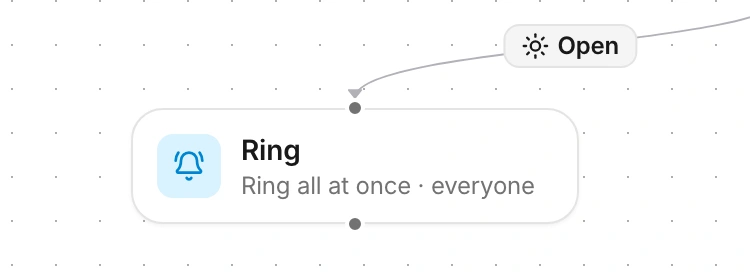
During opening hours, the incoming call follows the open branch to ring the team.
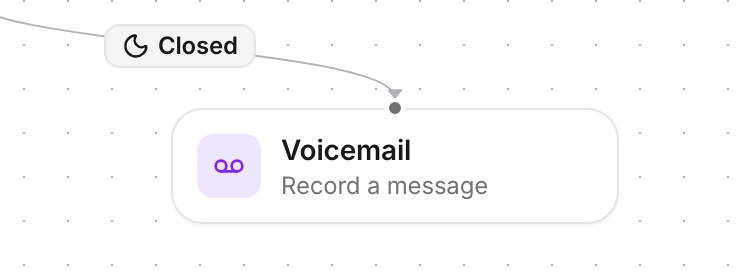
After closing, the call follows the closed branch to voicemail.
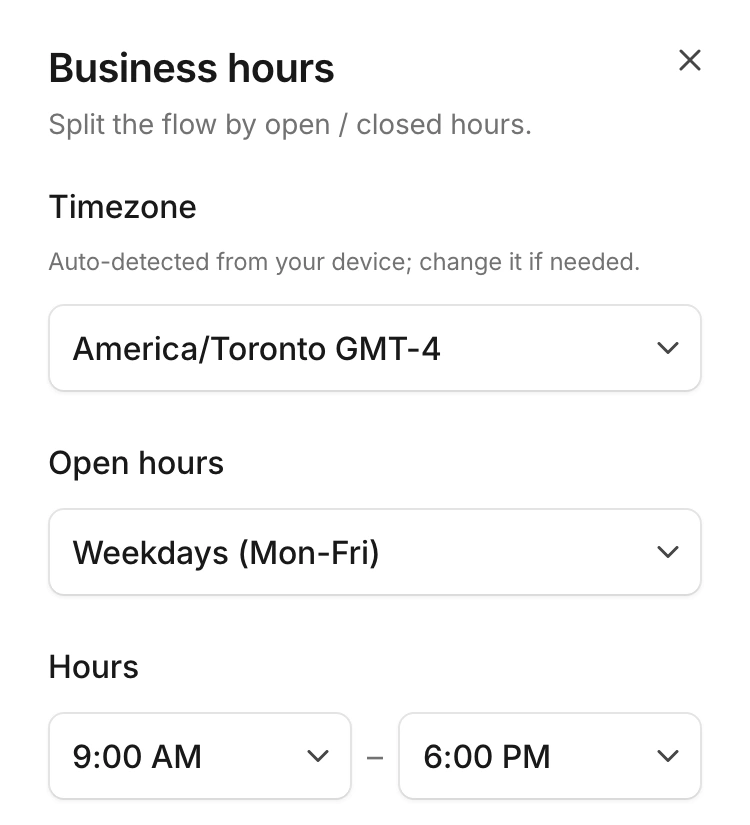
The business-hours configuration shows the timezone and weekly opening windows.
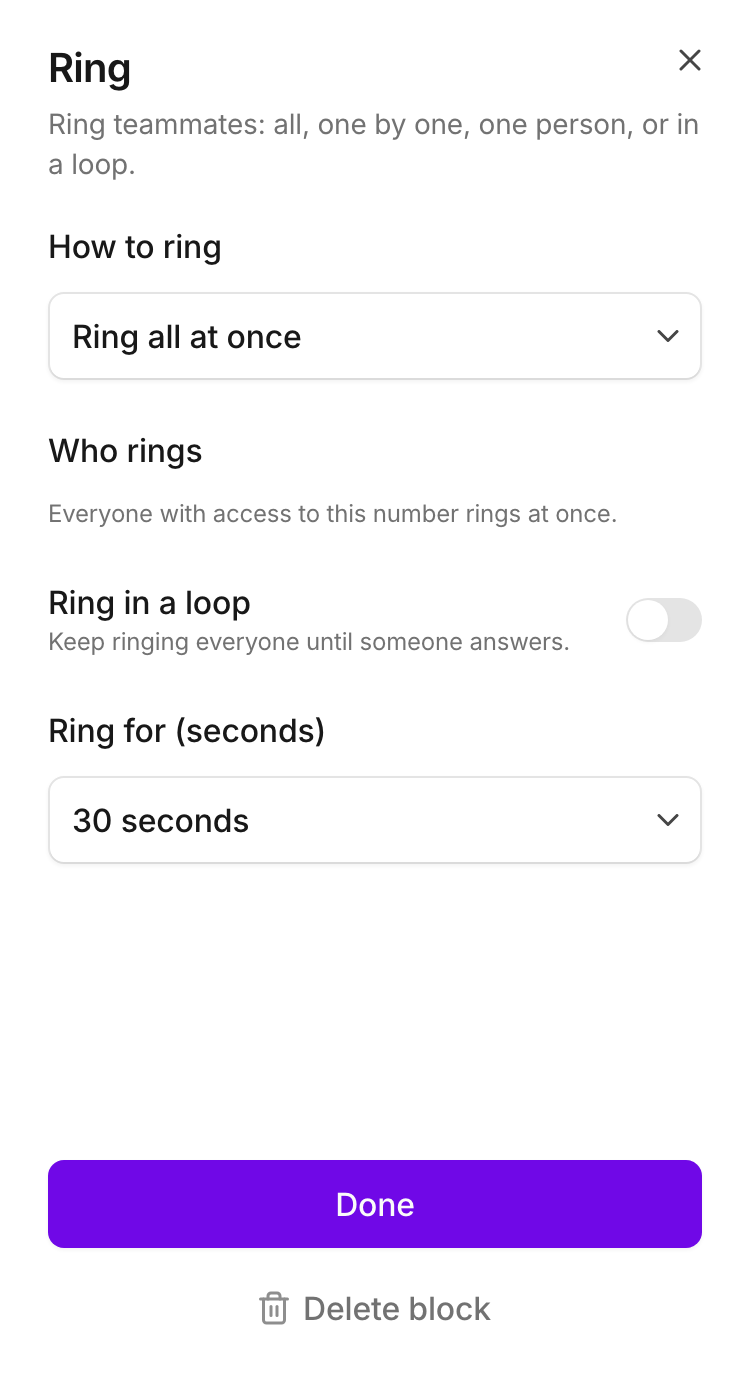
The ringing step shows the ringing mode and how long the team’s phones ring.
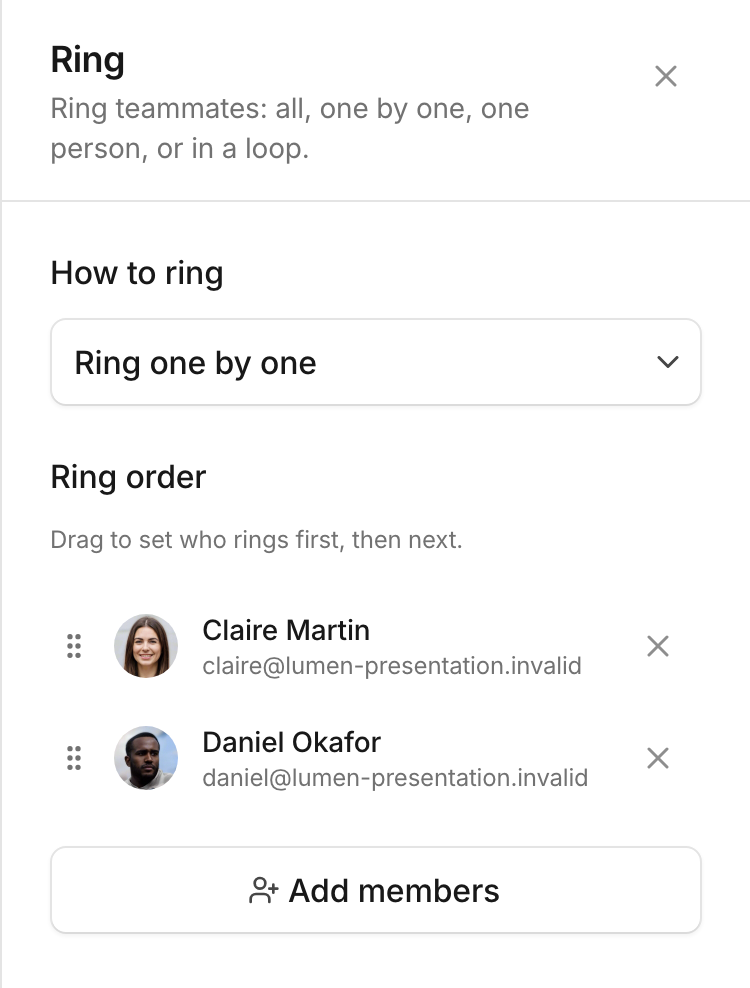
Set the order in which colleagues ring, with Claire first and Daniel next.
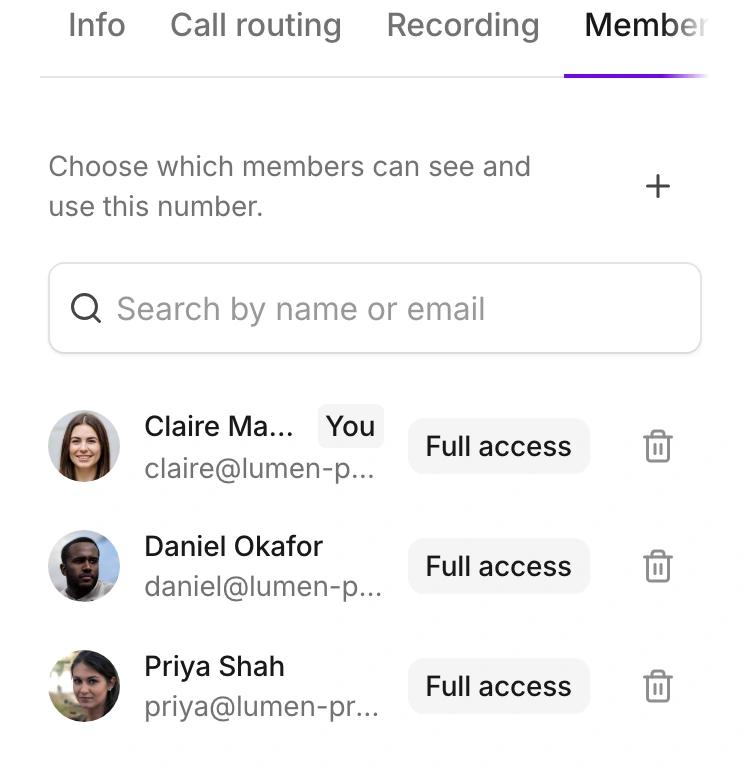
The number’s access list distinguishes who can see it and who can use it.
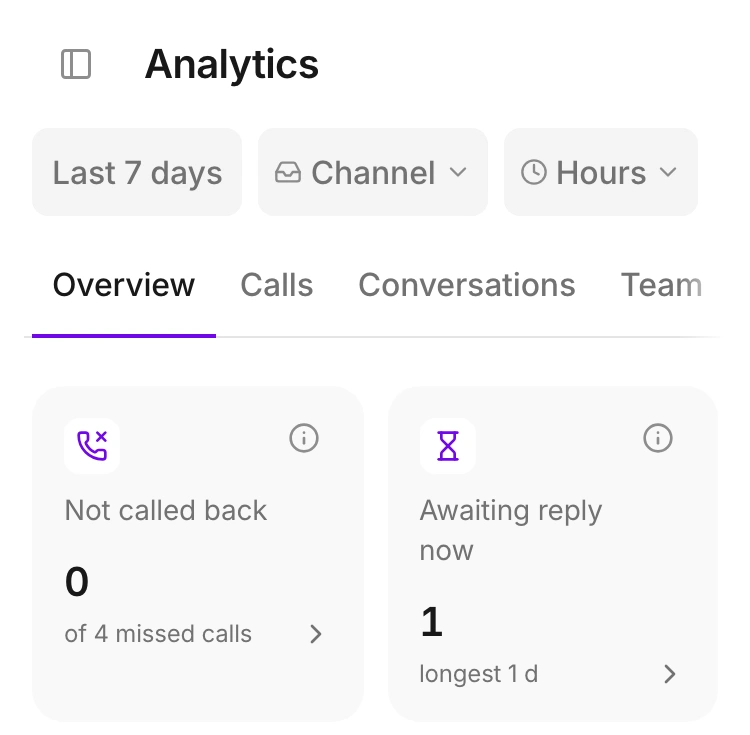
Check unanswered messages, missed calls and callbacks alongside the team’s activity. Choose a period to see the work behind the numbers.
Track messages awaiting a reply and calls not yet returned.
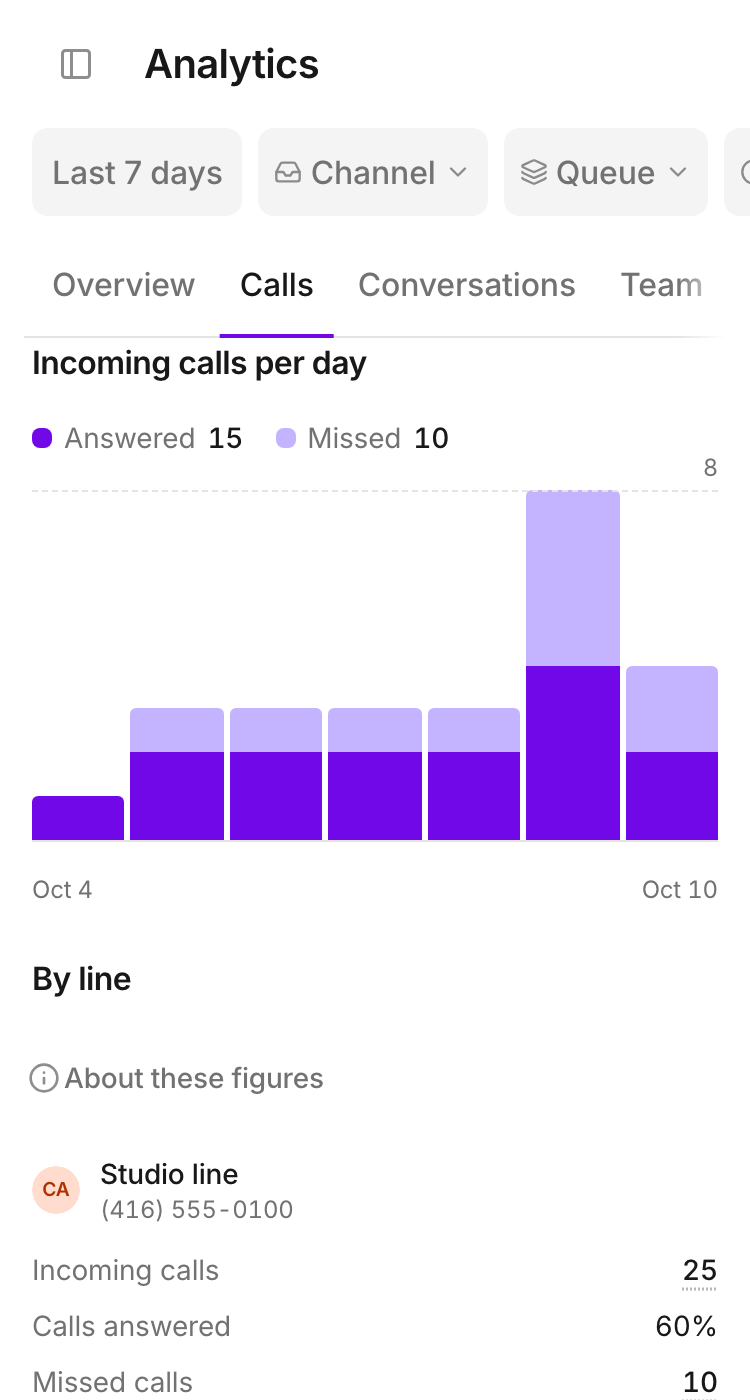
The daily chart separates answered and missed incoming calls for the selected period.
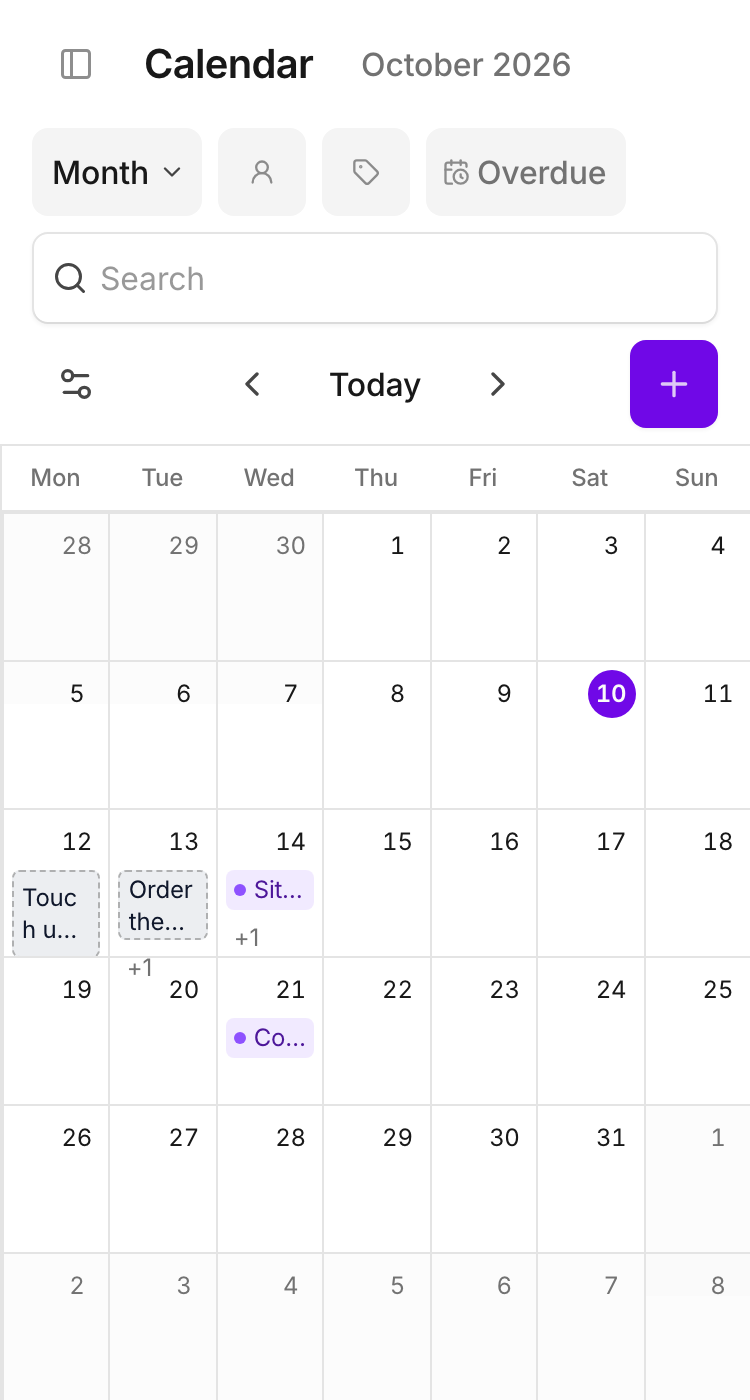
See the month’s customer work, then open an appointment for its title, time and contact. Task deadlines stay on the calendar with the visits.
Customer visits and task deadlines share the month view.
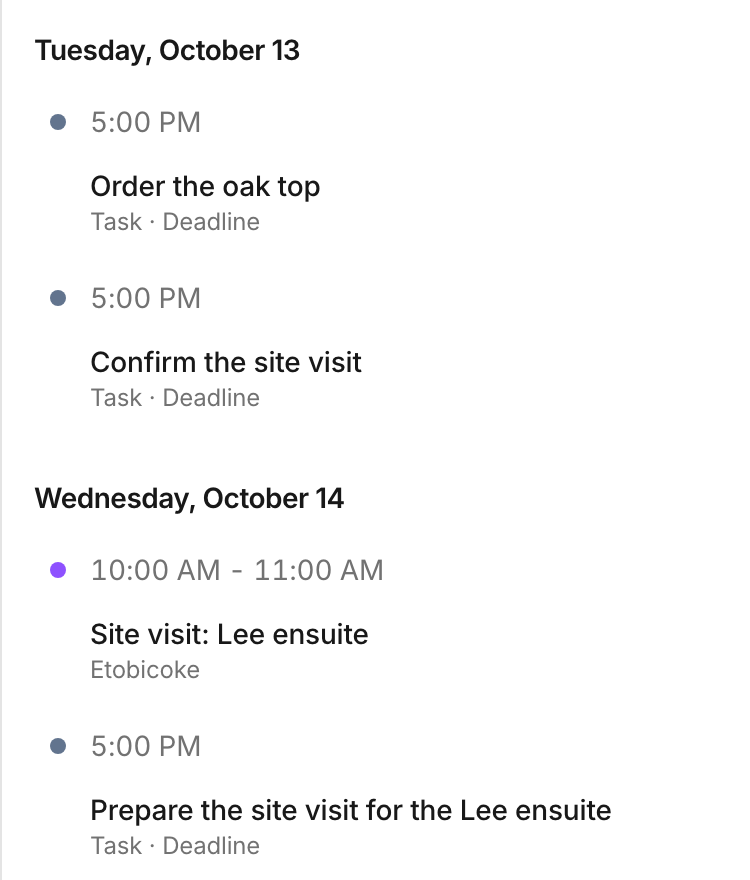
See customer visits and task deadlines in date order.
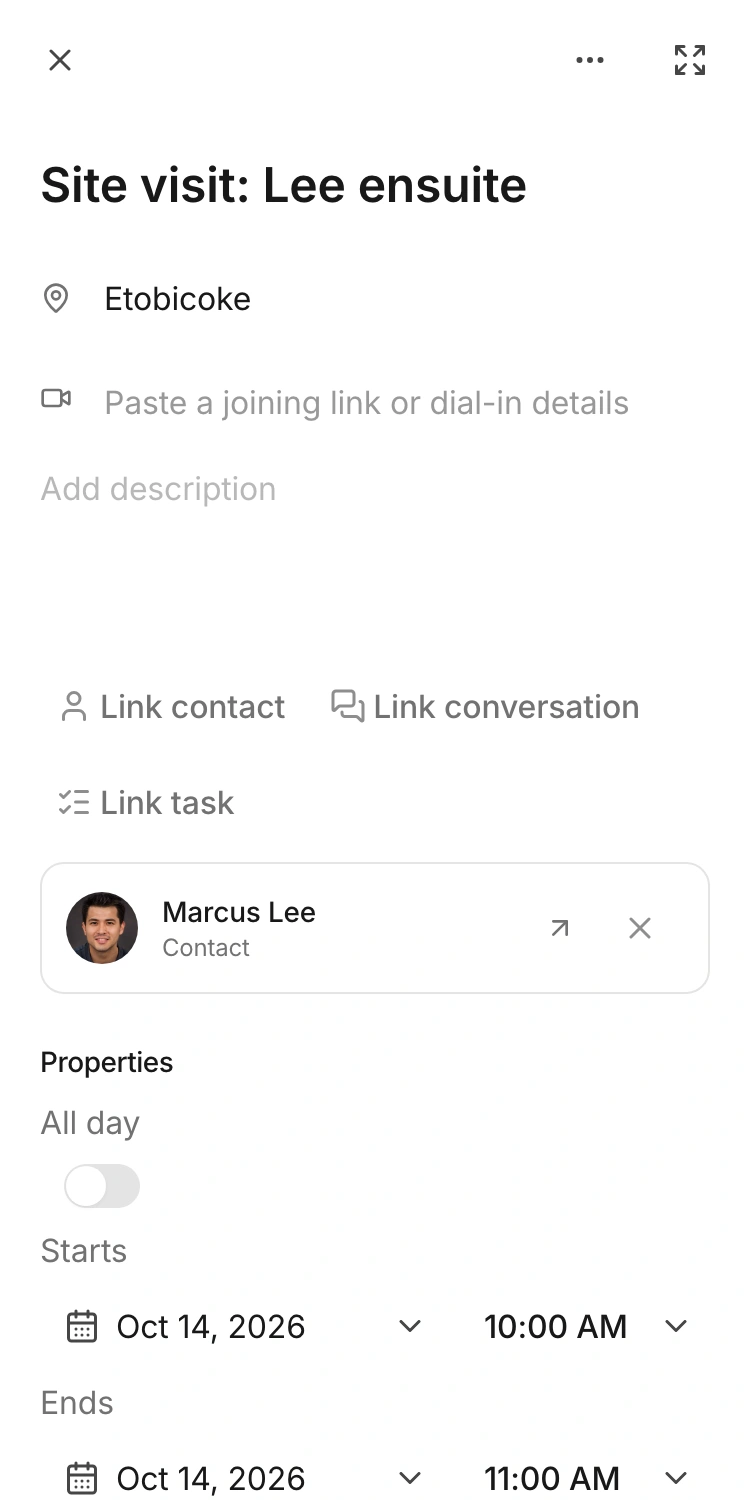
Open the event to see its start time and linked contact.
Explore the features above or compare Starter, Team and Business for your team.
Choose Starter, Team or Business for your workspace.