Free template
Free customer request tracker for Excel and CSV
One row per customer request, with one owner, one next action and one due date, so nothing waits without someone knowing.
Updated October 23, 2026
XLSX with filters, a status dropdown and overdue rows in red. 12 columns, 5 fictional example rows. The CSV has the same columns without formatting. No sign-up or email required.
One example request
A fictional row from the template. The files have 5; delete them before you add your own.
R-001 · Email · 2026-11-02
Northfield Bakery
Asks to move Thursday's oven maintenance visit to next week
Owner
Claire
Next action
Propose two new time slots
Due date 2026-11-03
Status
In progressClosed on
Show all 12 columns and 5 example rows
| Request ID | Received on | Channel | Customer | Request summary | Owner | Next action | Due date | Status | Last update | Closed on | Notes |
|---|---|---|---|---|---|---|---|---|---|---|---|
| R-001 | 2026-11-02 | Northfield Bakery | Asks to move Thursday's oven maintenance visit to next week | Claire | Propose two new time slots | 2026-11-03 | In progress | 2026-11-02 | Customer prefers mornings | ||
| R-002 | 2026-11-02 | Phone | Maya Thompson | Quote request for a bathroom renovation | Daniel | Book a site visit | 2026-11-05 | Assigned | 2026-11-02 | Callback number in the contact record | |
| R-003 | 2026-11-03 | Website chat | Harbor Street Cafe | Invoice shows the wrong billing address | Claire | Send corrected invoice | 2026-11-04 | Waiting for customer | 2026-11-03 | Asked for the new address | |
| R-004 | 2026-11-03 | Owen Price | Question about warranty on a past repair | Sam | Reply with warranty terms | 2026-11-03 | Done | 2026-11-03 | 2026-11-03 | Answered the same day | |
| R-005 | 2026-11-04 | Form | Lakeside Studio | Wants a second team member added to their account | Daniel | Confirm who approves the change | 2026-11-06 | New | 2026-11-04 |
Scroll horizontally to see every column.
What to put in each column
- Request ID
- A short unique reference, such as R-001, so the team can name the request in a note or message.
- Received on
- The date the request arrived, written as YYYY-MM-DD so every spreadsheet sorts it the same way.
- Channel
- Where it came from: email, phone, website chat, form, in person.
- Customer
- The person or company asking. Use the name your team searches for.
- Request summary
- One sentence in your own words. Keep personal or sensitive details out of the sheet.
- Owner
- One named person responsible for the next step. Not a team, not two names.
- Next action
- The concrete step that moves the request forward, starting with a verb.
- Due date
- When the next action should be done, as YYYY-MM-DD.
- Status
- One value from the status list below.
- Last update
- The date someone last changed the row.
- Closed on
- The date the request was done. Leave empty while it is open.
- Notes
- Short context for the next person, such as what was already promised.
What each status means
- New
- Received, nobody owns it yet.
- Assigned
- An owner is named and the next action is written.
- In progress
- The owner is working on the next action.
- Waiting for customer
- The team needs an answer or document before it can continue.
- Done
- The request is complete and the closing date is filled in.
How to use the template
- 1
Add the request
The day it arrives, fill in the ID, date, channel, customer and a one-line summary. Status: New.
- 2
Name one owner
Write one name, the next action and its due date. Status: Assigned.
- 3
Work on it
The owner moves the row to In progress and changes Last update whenever the row changes.
- 4
Close it
When the next action ends the request, set Done and fill in Closed on. Otherwise, write the following action and its date.
Once a week, sort by due date and review the open rows together: late, unassigned, waiting for the customer.
Open it in Google Sheets, Excel or LibreOffice
In Excel or LibreOffice Calc, open the XLSX file. In Google Sheets, use File, then Import, and upload it. Then save it where the team can edit it. A row turns red when its due date has passed and it is not Done.
In the CSV, dates use the YYYY-MM-DD format so they sort correctly. If every value appears in one column, use your spreadsheet’s import option and choose comma as the separator.
Keep the sheet to what the team needs to act. Leave out health, payment and other sensitive details, and share it only with the people who handle requests.
When a spreadsheet stops being enough
- Requests are copied by hand from email, calls and chat, and some never reach the sheet.
- The row says what to do but not what the customer said.
- Nobody updates the status after the reply.
At that point, compare the options in our guide, or see how a shared inbox keeps the conversation, the owner and the next step together.
The same follow-up in Bonmoniq
Transcript and screenshots
- 1
Open the conversation
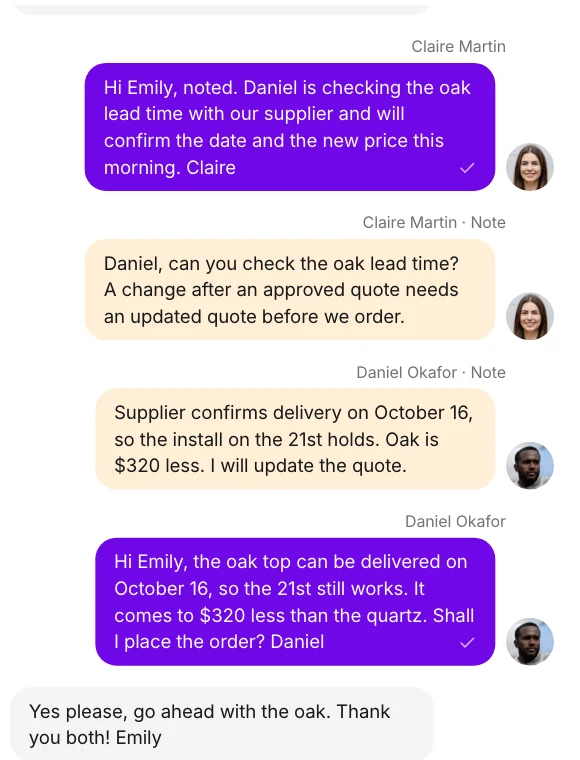
From the Email inbox, open Emily Carter’s conversation: her request, the team’s internal notes, the reply and her go-ahead.
- 2
Find the related task
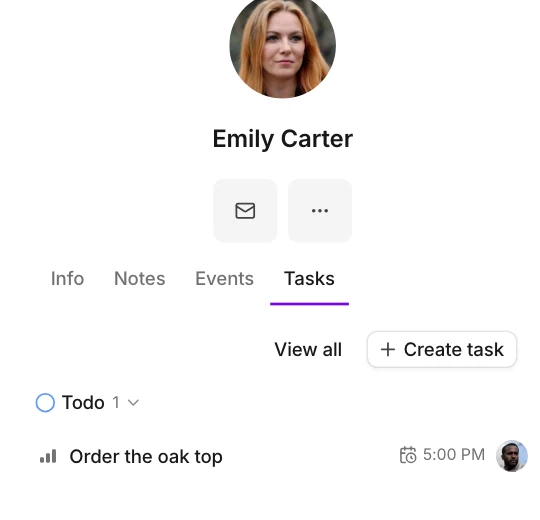
Her contact’s Tasks tab lists the task that follows the conversation: Order the oak top, Todo.
- 3
Check owner, due date and status
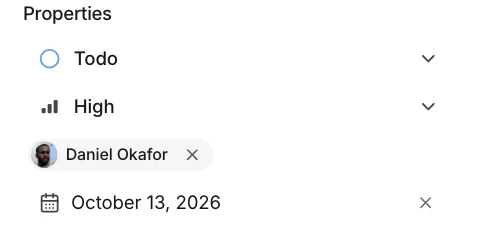
The task shows status Todo, priority High, owner Daniel Okafor and due date October 13, 2026.
- 4
Back to the conversation
Close the task to return to the conversation. Nothing was changed or sent.
Related guides: Shared inbox best practices, Shared mailbox vs shared inbox